

How to Reconcile Batch Deposit Payments for Invoices in Xero
Three ways to reconcile a batch deposit payment against multiple invoices in Xero — using Find & Match, creating a batch deposit manually, or automating the process with Remittance Go.
Overview
When a customer pays multiple invoices in a single bank transfer, you need to match that lump-sum deposit against each individual invoice in Xero. This tutorial walks through three ways to do it — from Xero's built-in tools to a faster automated approach with Remittance Go.
Method 1: Reconcile using Find & Match in the bank reconciliation screen
This is the most direct route when you already have the payment sitting in your bank feed.
Step 1: Open the bank reconciliation screen
In Xero, click the Reconcile button (shown as the number of items to reconcile) on your bank account. This opens the bank reconciliation screen showing all incoming and outgoing transactions.
Step 2: Locate the batch deposit
Find the lump-sum payment in your bank feed. In this example, the payment is $9,284 — a single deposit covering four separate invoices listed on the customer's remittance advice.
Step 3: Click Find & Match
Click the Find & Match button next to the transaction. Xero displays all outstanding invoices and any payments waiting to be reconciled.
Step 4: Select the matching invoices
Scroll through the list and tick each invoice that makes up the deposit, or use the search field to find invoices by name, number, or reference. Select all four invoices that appear on the remittance advice.
Tip: As you select invoices, Xero tracks the running total. When the selected amount matches the bank transaction, the row turns green — confirming everything balances.
Step 5: Confirm and reconcile
Once all invoices are selected and the total matches, click OK (top of screen) or the blue Reconcile button at the bottom. Xero marks all four invoices as paid and clears the bank transaction.
Method 2: Create a batch deposit manually via Invoices
Use this method when you need to handle underpayments or want to group invoices into a formal batch deposit before reconciling.
Step 1: Open the awaiting payment list
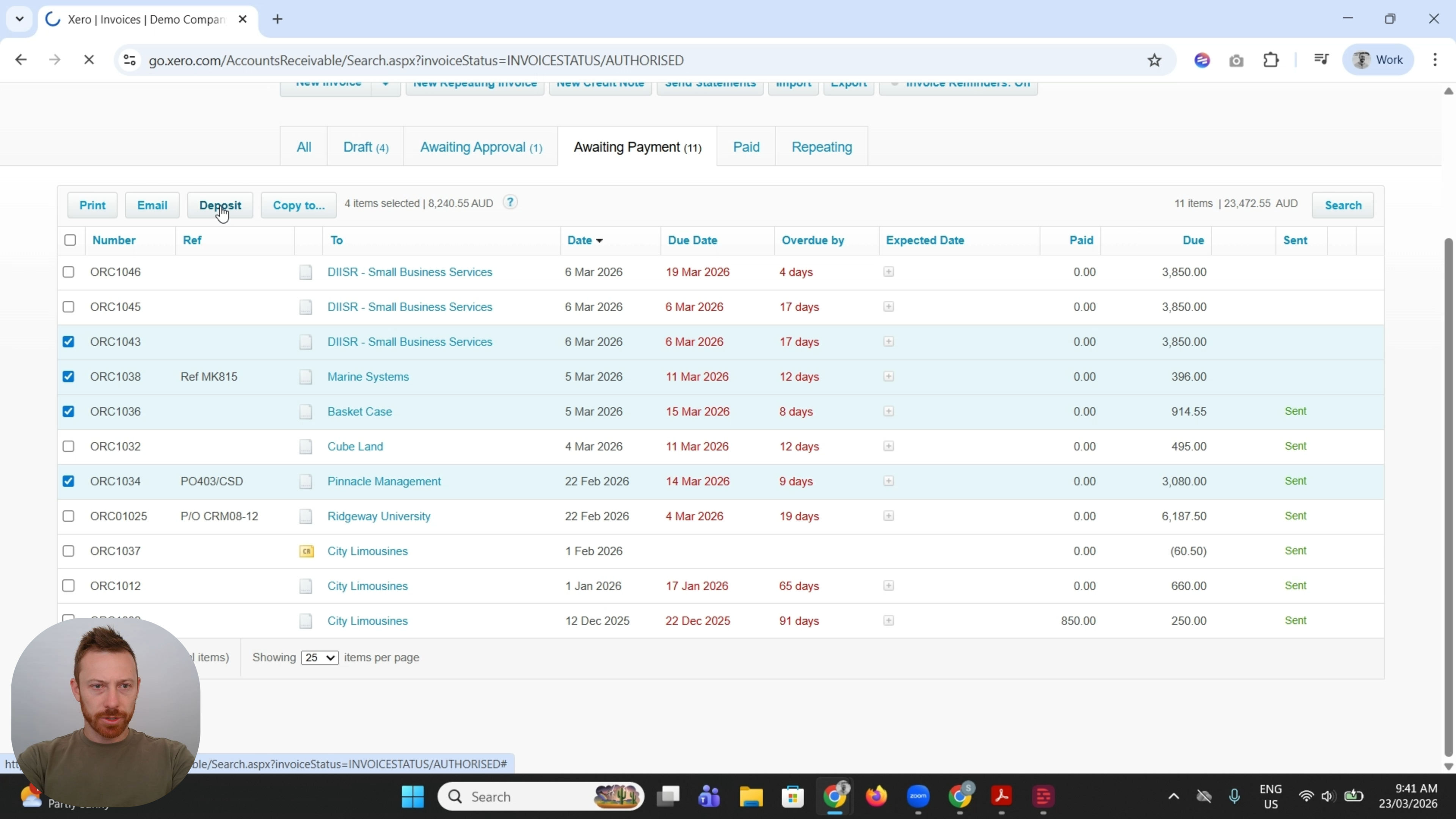
Go to Sales → Invoices and click the Awaiting Payment tab. This shows all invoices currently outstanding.
Step 2: Select the invoices from the remittance
Tick the checkbox next to each invoice listed on the customer's remittance advice. In this example, that's invoices ORC1034, ORC1036, ORC1038, and ORC1043.
Note: If the selected total is higher than the deposit amount, an underpayment has occurred — one of the invoices was only partially paid. You'll fix this in the next step.
Step 3: Click Deposit
Click the Deposit button at the top of the screen. Xero opens the New Batch Deposit screen.
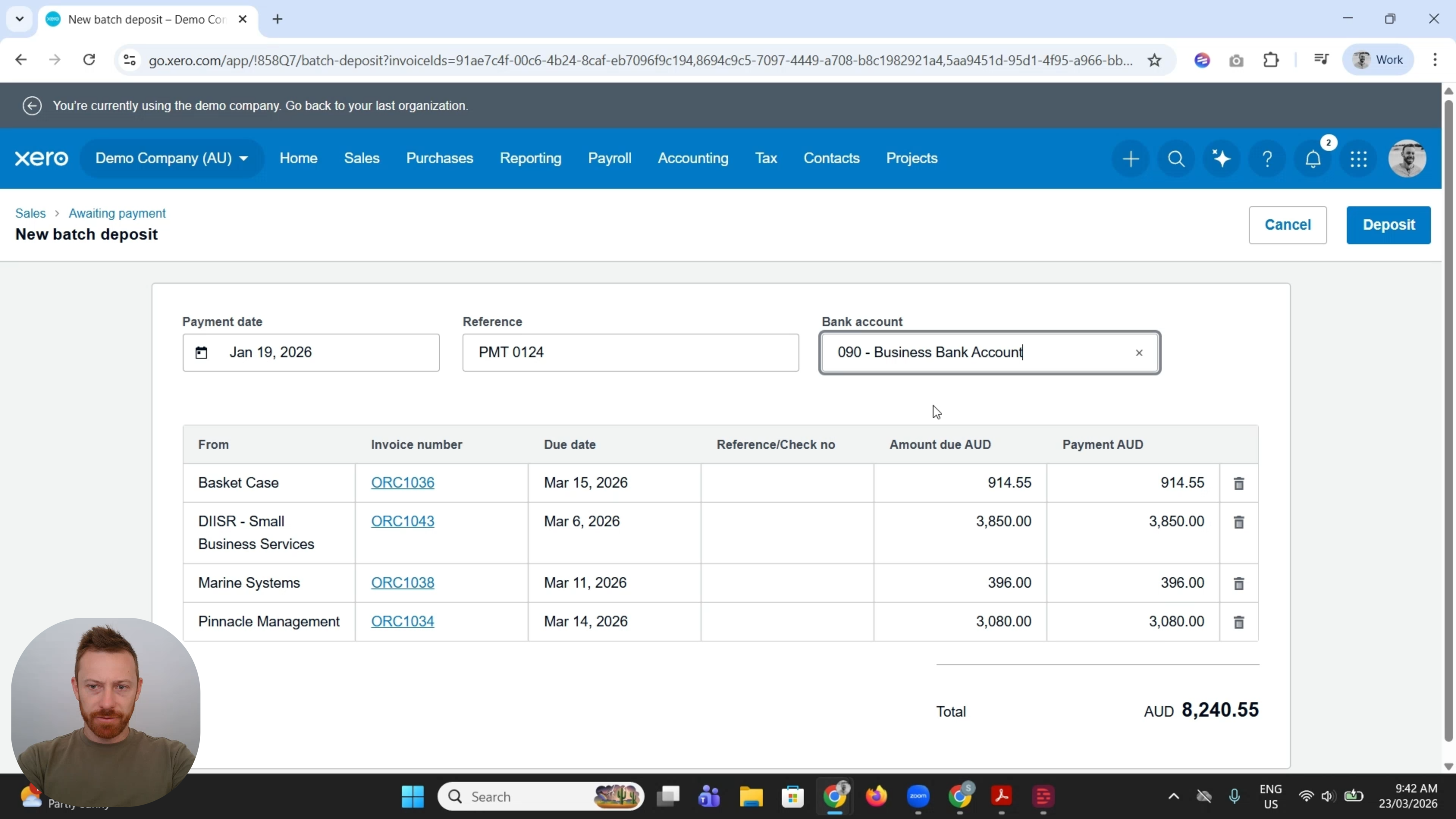
Step 4: Set the deposit details
Fill in the three fields at the top of the screen:
- Payment date: Set this to the date the payment appears on your bank statement (e.g. Jan 19, 2026).
- Reference: Add a reference if needed (e.g. PMT 0124).
- Bank account: Select the account the deposit was paid into (e.g. 090 - Business Bank Account).
Step 5: Adjust for underpayments
Review the Payment AUD column for each invoice. If a customer paid less than the full invoice amount, update the figure to reflect the actual payment received. In this example, Marine Systems has an amount due of $396 but only $300 was deposited — update that line to $300.
Step 6: Save the batch deposit
Click the blue Deposit button in the top-right corner. Xero creates the batch deposit and marks the corresponding invoices.
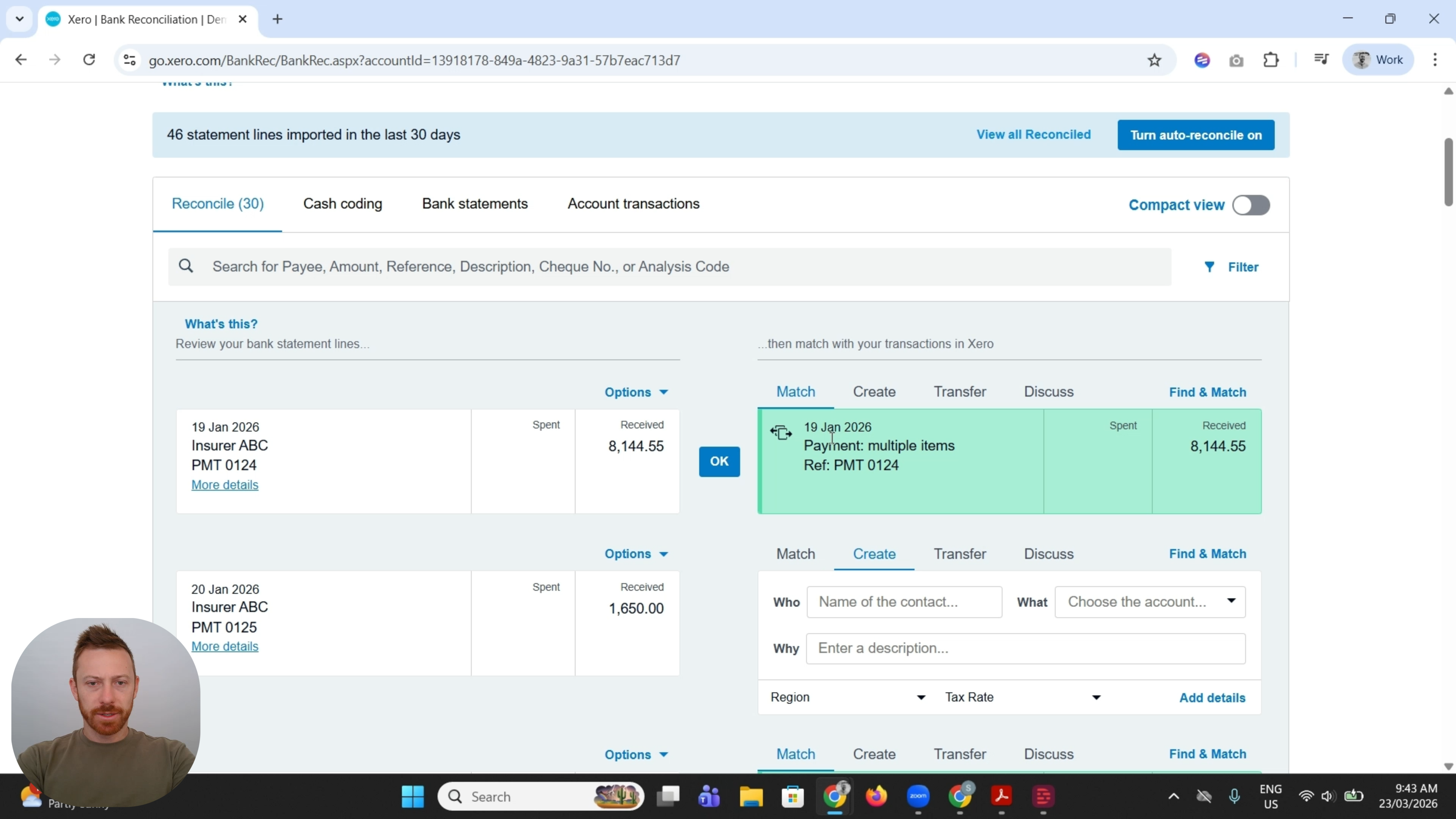
Step 7: Reconcile the batch deposit in the bank feed
Go back to Home and click Reconcile items. Because the batch deposit matches the bank transaction date and amount, Xero automatically suggests the match — it appears highlighted in green showing Payment: multiple items with the reference PMT 0124. Click OK to complete the reconciliation.
Method 3: Use Remittance Go to automate the process
If you regularly receive batch deposits with remittance advice documents, Remittance Go handles the heavy lifting — reading the remittance, matching invoices, and creating the batch payment in Xero with far fewer steps.
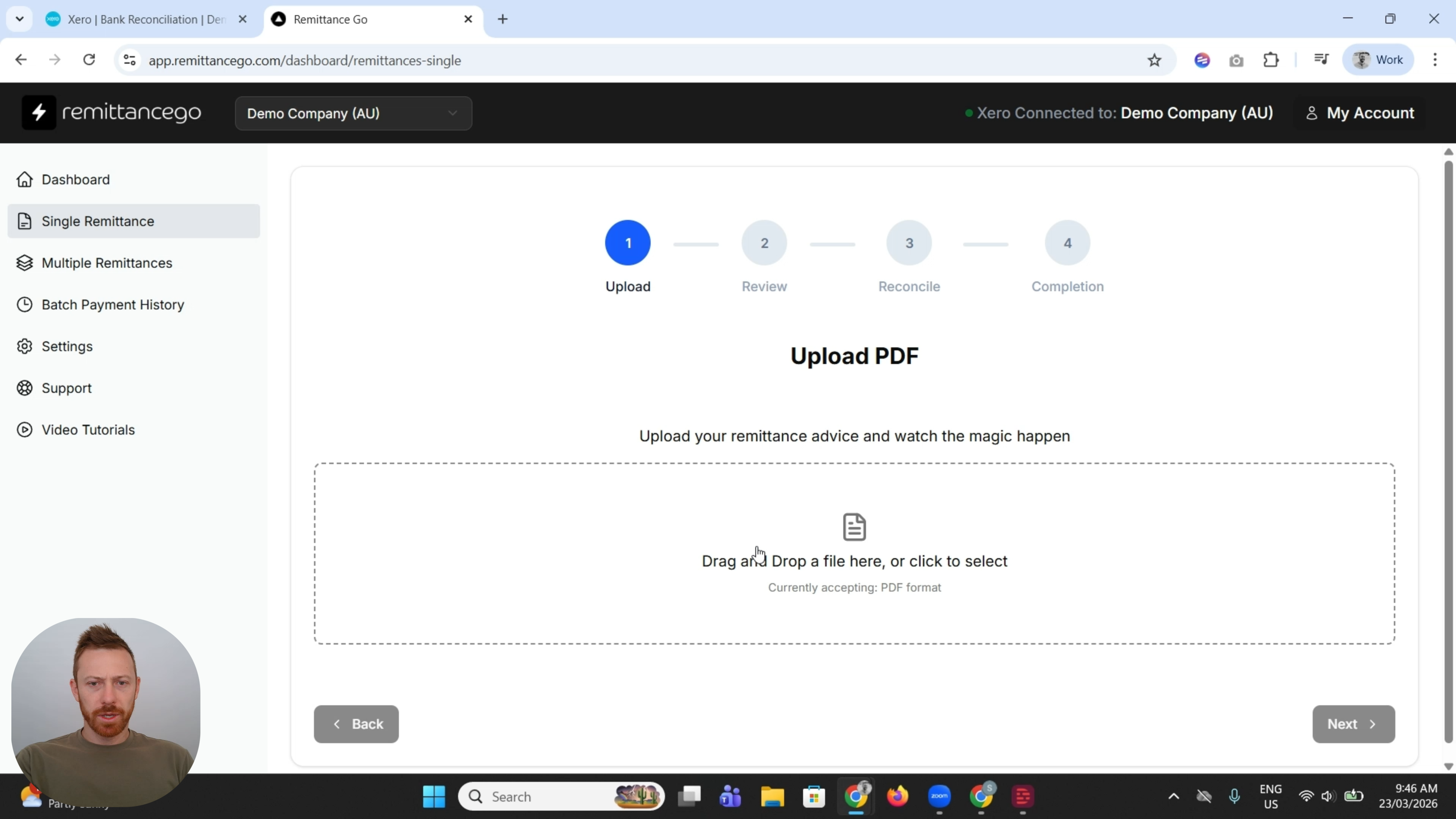
Step 1: Upload the remittance advice
In Remittance Go, navigate to Single Remittance and drag and drop the remittance advice PDF directly onto the upload area. Remittance Go reads the document and extracts the invoice details automatically.
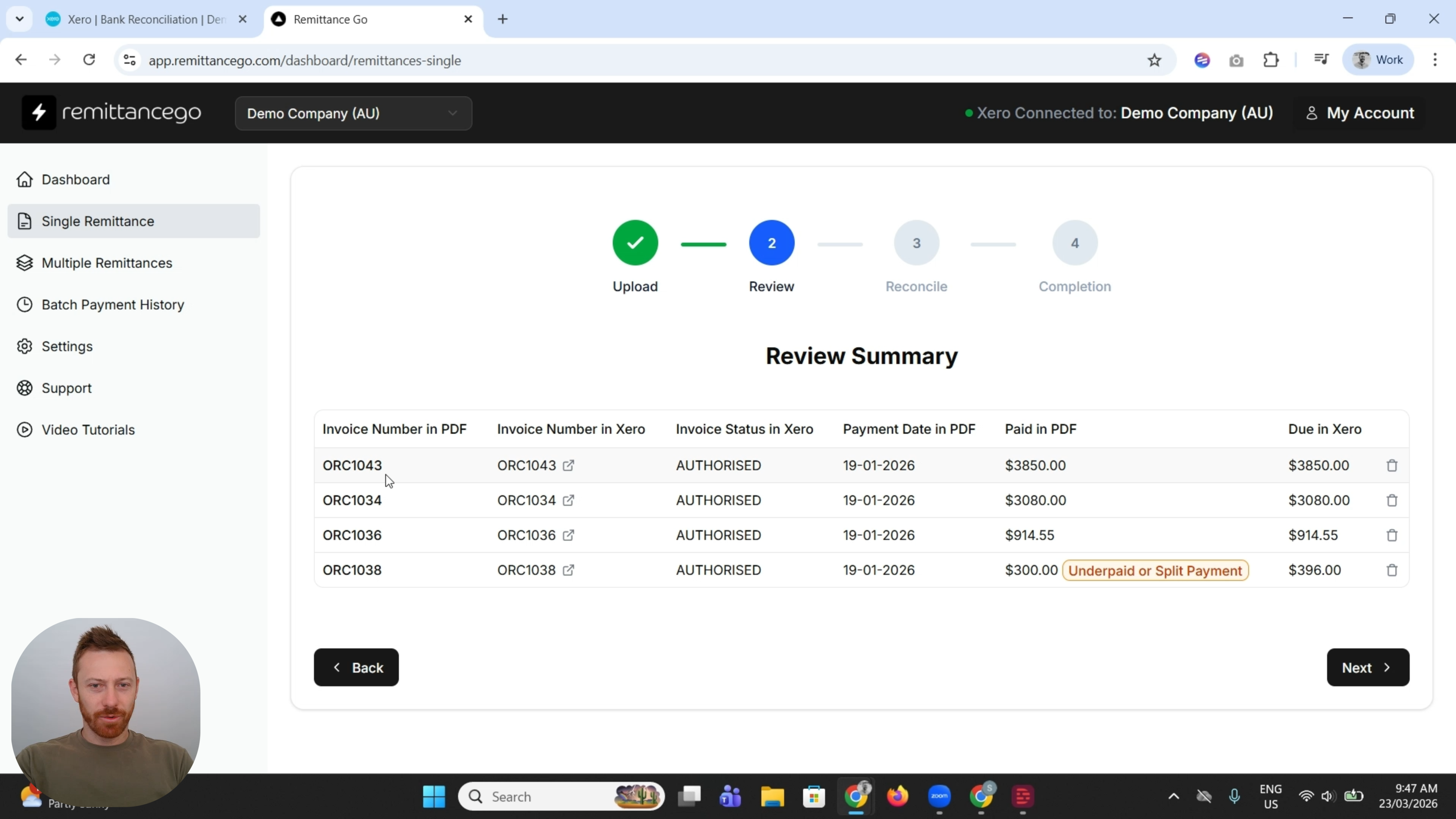
Step 2: Review the matched invoices
Remittance Go displays a Review Summary table showing each invoice number from the PDF matched to the corresponding invoice in Xero, along with the invoice status, payment date, amount paid in the PDF, and the amount due in Xero. Any exceptions are clearly flagged — in this example, invoice ORC1038 for Marine Systems is marked Underpaid or Split Payment because the PDF shows $300 paid against a $396 balance.
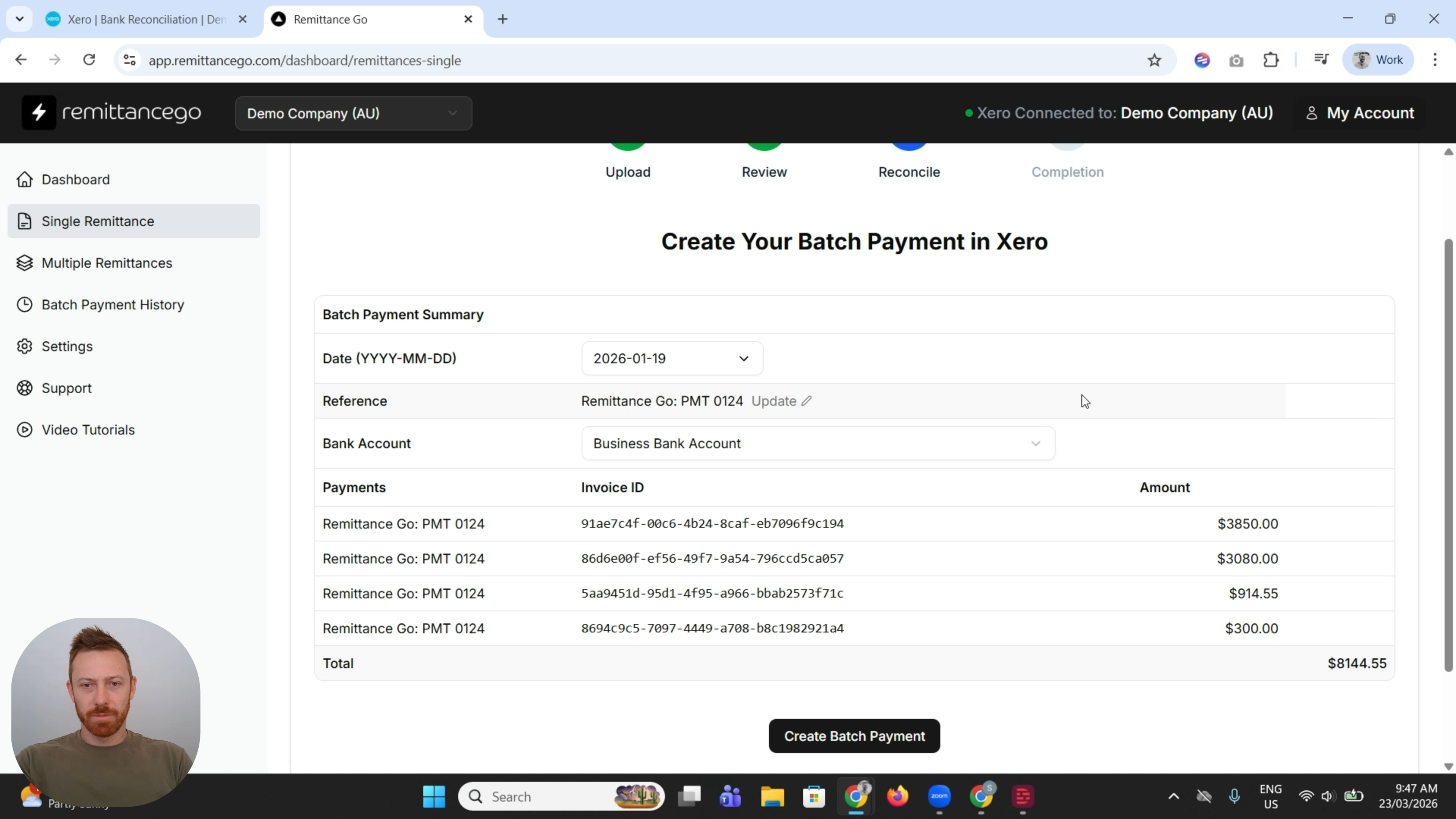
Step 3: Create the batch payment in Xero
Click Next to proceed to the Reconcile step. Select the bank account the payment was deposited into, then review the batch payment summary — it lists each invoice ID and payment amount, with the total at the bottom. Click Create Batch Payment to push the payment into Xero automatically.
Step 4: Reconcile in Xero
Switch back to Xero and open the bank reconciliation screen. Click Find & Match on the deposit. Remittance Go's batch payment appears as a suggested match — select it and click OK to complete the reconciliation.
Frequently asked questions
What if the deposit total doesn't match any combination of invoices?
The most common cause is an underpayment — the customer paid less than the invoice total. Use Method 2 or Remittance Go to adjust the individual invoice amounts to match what was actually received.
Can I reconcile a batch deposit without a remittance advice?
Yes. Use Method 1 (Find & Match) and manually identify the invoices that make up the deposit by cross-referencing your records with the customer.
Does Remittance Go work with all remittance advice formats?
Remittance Go reads PDF remittance advice documents. It works with most standard formats regardless of which accounting system the customer uses to generate them.
How do I start a trial of Remittance Go?
Click the link in the video description to start a free 14-day trial. No credit card required.
How to Reconcile NDIS Remittances in Xero
Step-by-step guide to reconciling NDIS batch payments in Xero — manually and using RemittanceGo to automate the process.