 Xero App Store Verified
Import CSV Remittances Into Xero
Upload any CSV remittance file and Remittance Go auto-detects the columns, matches every invoice against Xero, and creates a batch payment — no manual data entry, no spreadsheet gymnastics.
Process your first CSV remittance →
Process CSV Remittance Advices
Upload a CSV export from any health fund, plan manager, or client portal.
Process CSV Remittance Advices
Suitable for general remittances, NDIS remittances, and everything in between.
Processing Queue
| Document | Status | Processing | Action |
|---|---|---|---|
abc-aged-care.csv | In progress | Analyzing…(thinking) | Review |
services-jan.csv | In progress | Pondering…(thinking) | Review |
my-caremanager-june.csv | In progress | Whirring…(thinking) | Review |
ndis-june-remittance.csv | Ready to review | …(thinking) | Review |
support-at-home-remittance.csv | Ready to review | …(thinking) | Review |
engineering-remittance.csv | Ready to review | …(thinking) | Review |
my-healthcare-remittance.csv | Ready to review | …(thinking) | Review |
Process CSV Remittance Advices
Suitable for general remittances, NDIS remittances, and everything in between.
| Invoice Number in PDF | Invoice Number in Xero | Invoice Status in Xero | Paid in PDF | Due in Xero |
|---|---|---|---|---|
| INV-1044 | INV-1044 | AUTHORISED | $436.00 | $436.00 |
| INV-1046 | INV-1046 | AUTHORISED | $3255.00 | $3255.00 |
| INV-1051 | INV-1051 | AUTHORISED | $812.00 | $812.00 |
| INV-1049 | INV-1049 | AUTHORISED | $436.00 | $436.00 |
| INV-1099 | INV-1099 | AUTHORISED | $436.00 | $436.00 |
Process CSV Remittance Advices
Suitable for general remittances, NDIS remittances, and everything in between.
| Payments | Invoice ID | Amount |
|---|---|---|
| Remittance Go: X238939 | c36a246f-d307-474f-909f-4f42bf459768 | $436.00 |
| Remittance Go: X238940 | 4e5c81f4-79ec-40ba-9487-132692a0d447 | $612.50 |
| Remittance Go: X238941 | 9b2f7a13-6c4e-4a2d-8f91-3d5e7c8a1b6f | $890.00 |
| Remittance Go: X238942 | 71e0d4c9-2b8f-4e6a-9c3d-5a8f2e1b4c7d | $1,035.00 |
| Remittance Go: X238943 | 2d6a8f31-c4b7-4f2e-8a1d-6b9c3e7f5a4d | $717.50 |
| Total | $3691.00 |
Process CSV Remittance Advices
Suitable for general remittances, NDIS remittances, and everything in between.
Process CSV Remittance Advices
Suitable for general remittances, NDIS remittances, and everything in between.
Your batch payment has been successfully pushed to Xero.
How it works
How CSV Remittances Are Processed
Remittance Go reads the CSV, matches each row to your open Xero invoices, and lays it out for review before the batch is created.
Step 1 - Upload the CSV
Drag in the file from your downloads, an email attachment, or a client portal.
Step 2 - Columns are auto-detected
Invoice number, amount, reference, and date — identified automatically, however the payer named them.
Step 3 - Review matched invoices
Every row is matched against your open Xero invoices, with errors and short payments flagged.
Step 4 - Batch payment in Xero
Confirm, and the batch payment posts via the official Xero API — dated and ready to reconcile.
About CSV remittance processing
Handle CSV Remittances From Any Payer, in Any Format
Upload it. We read it. Xero gets the batch payment.
Column Detection That Works for Any CSV
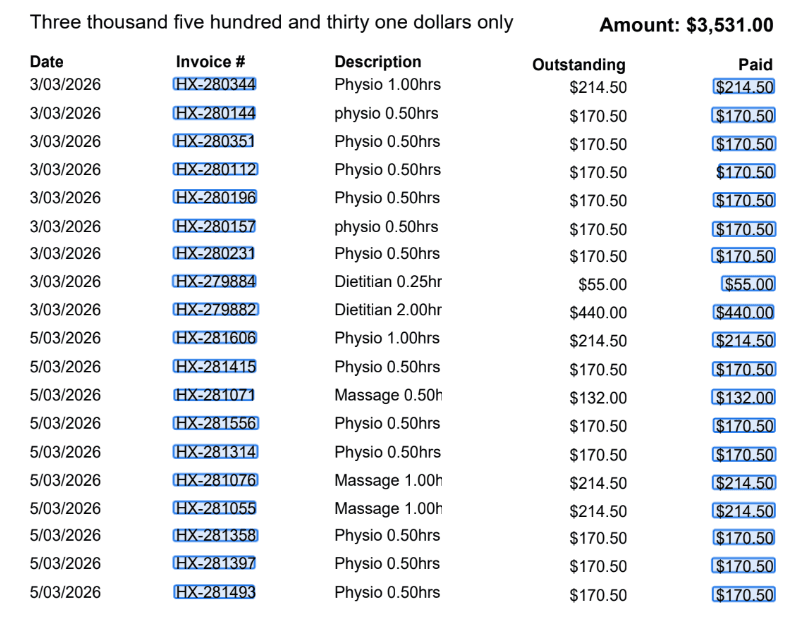
Every payer exports their CSV with different column names and layouts — even messy exports like this one. Remittance Go reads the file, maps invoice references, amounts, and dates automatically, and matches every row to Xero. No templates, no column mapping to set up.
Review Every Line Before Anything Hits Xero
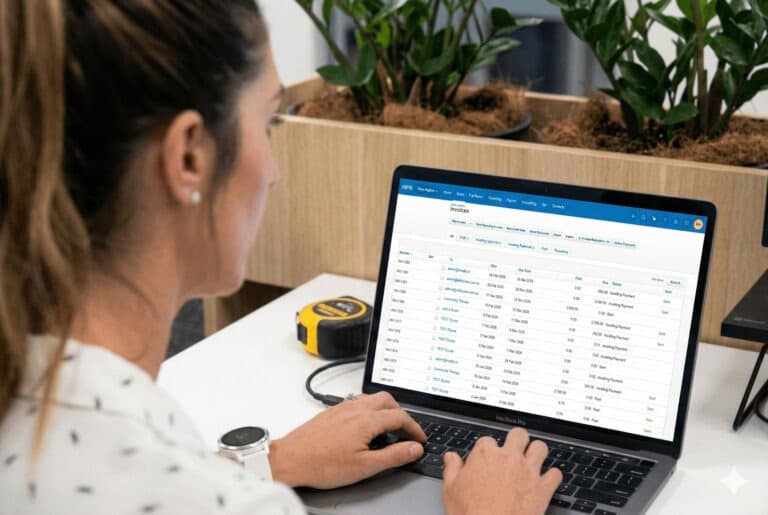
Before posting, review every CSV row against its matched Xero invoice — amount, reference, and status.
Short payments, unmatched references, and duplicate rows are flagged automatically. Confirm, and Remittance Go posts the batch payment to Xero via the official API.
One Workflow for Every CSV, From Any Payer
Whether the CSV comes from a health fund, a plan manager, or an in-house export, Remittance Go processes it the same way — extract, match, review, post.
CSVs that arrive as email attachments can be handled automatically via the email remittance queue, which captures attachments as they arrive. You never touch the file — it just appears in your queue, ready to process.

“Three health funds, three different column layouts. Remittance Go reads them all without any fuss.”
CSV Remittance Questions
Do I need to set up a column mapping template before uploading?
No. There is no configuration required. Upload the CSV and Remittance Go handles column detection automatically. If there is genuine ambiguity in the file structure, the review screen lets you confirm the mapping before anything is posted to Xero.
What if the CSV has extra columns, summary rows, or unusual formatting?
Extra columns are simply ignored. Summary rows, sub-totals, and blank rows are filtered out automatically. Remittance Go focuses on extracting the columns it needs — invoice references, amounts, and payment dates — and leaves everything else alone.
What happens if a CSV row doesn't match an invoice in Xero?
Unmatched rows are flagged clearly on the review screen before the batch is created. You can see exactly which lines didn't match and investigate before confirming. See also how Remittance Go handles remittance errors and discrepancies more broadly.
Can I upload multiple CSV files at once?
Yes. You can queue multiple CSV files and work through them in a single session. Each file is treated as a separate remittance and matched independently against your Xero invoices.
Is CSV processing different from PDF processing?
Not really, though it's faster. CSVs have native text, which we process directly. A PDF is more like an image — the text is less accessible, so we use various OCR techniques to extract it. But once both are in text format, they are largely the same.
How quickly does the payment appear in Xero?
As soon as you confirm the batch on the review screen, Remittance Go calls the Xero Batch Payment API and the payment appears in your Xero account immediately — no waiting, no manual entry.
Ready to Stop Processing CSV Remittances by Hand?
Start for free. No credit card required.